 Registration Guide Register for HPC Access to HPCNew User Guide How to Run Batch Jobs Portal User Guide About the Service Subscribe to Pay-Per-Use Service Subscribe to Condominium Service Terms and ConditionsUser GuideHigh Performance Workspace Service Utility Storage ServiceResearch Data Management Service
Centre for Computational Science & Engineering
 |
||
| Need help? | ||
|
||
 |
||
How to Use MobileVisLab
To use MobileVisLab, you first need an HPC account. Information on HPC account application can be found at the HPC website
Download tight-vnc-1.3.9 from http://www.virtualgl.org/Downloads/TurboVNC or from http://bobcat.nus.edu.sg/svu/support/vnc/, double click on TurboVNC-0.6.exe and follow the instructions to install TurboVNC Viewer on your PC. TightVNC viewer is also supported by MobileVisLab, but suggest you to install and use TurboVNC which has a better performance.
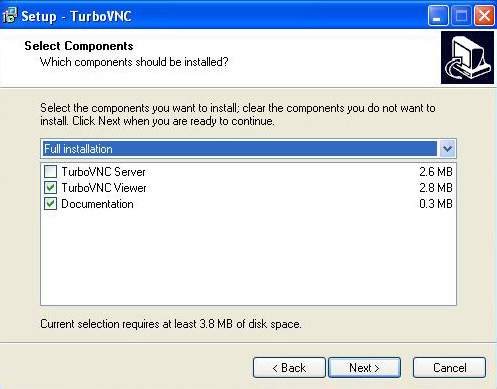
- When asked "Which components should be installed", uncheck TurboVNC server.
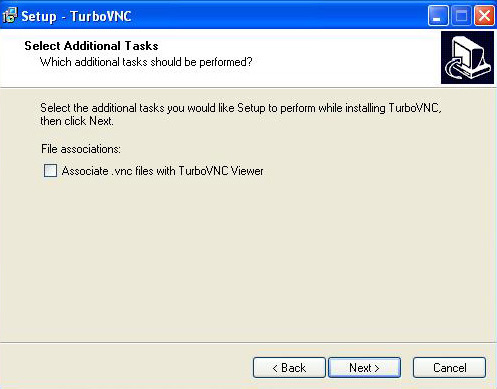
- Uncheck "associte .vnc files with the TurboVNC viewer", in case other files with a .vnc extension call for TurboVNC Viewer to start up:
- After the installation is completed, go to Start - All Programs - TurboVNC, click and start TurboVNC Viewer (Listen Mode).
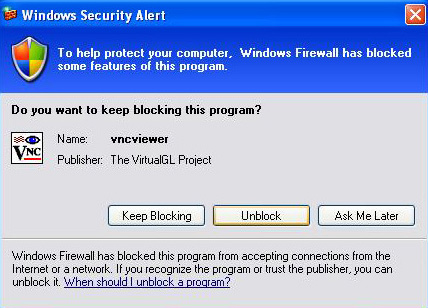
- You may be ask to unblock the vncviewer on your PC, choose Unblock when you see this window pops up:
- Once it is started, you'll see this icon on the tool bar at the bottom right of your screen.

To use MobileVisLab, log on to HPC SGD portal bobcat.nus.edu.sg or puma2.nus.edu.sg using your NUSNET account and password, and then click on Run Jobs/Apps tab.
- When you click on MobileVisLab, a window will pop up to ask you to install TurboVNC Viewer (Listen Mode) if you have not already done so. Click OK if TurboVNC has been started in Listen Mode.
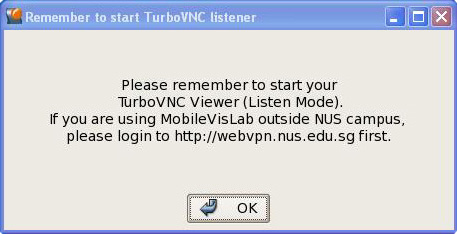
- A message box will pop up, telling you how to start your own OpenGL applications. Click Ok to proceed.

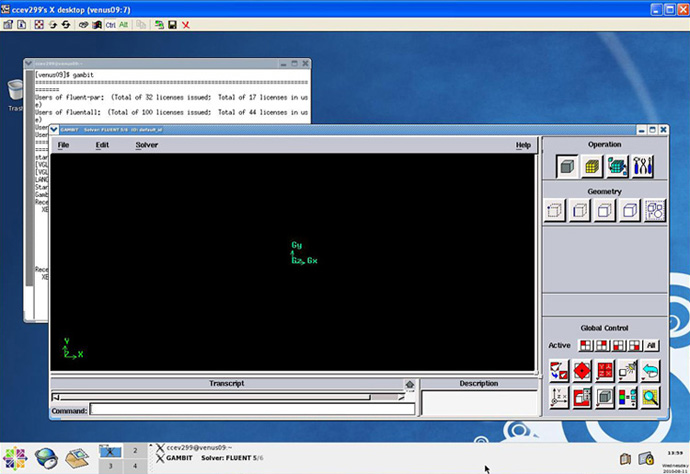
- An Xterm Window will appear on your desktop, resize the boxes to fit your window. The login host could be any one host among venus01~16. The /home/svu/$USERID directory is accessible on each host. The 1.1 Tera byte Lustre parallel file system is mounted as /svutmp and shared by all nodes in the cluster. If you files are in /svutmp and you want to submit jobs to the batch queues, you need to copy your files to your home directory as it is a global directory accessible from any HPC host. Start your application at the command prompt as per normal:
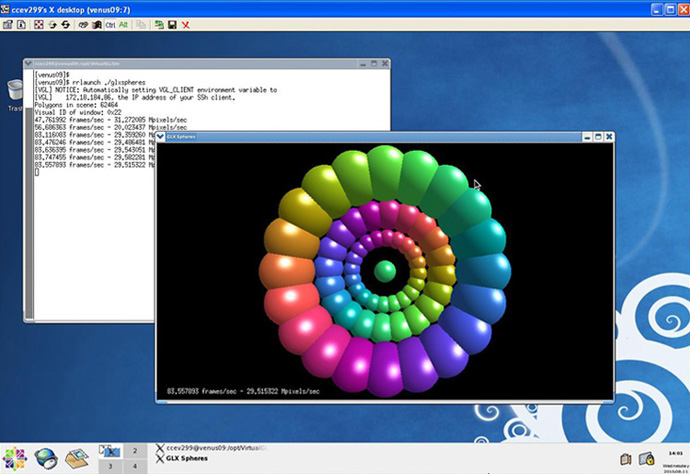
- To start your own OpenGL application, use "rrlaunch my_executable".
Collaboration with Others
If you want to collaborate with another users elsewhere, click on the MobileVisLab_EnableCollaboration button, which will put your name (userid) in the Users Available for Collaboration List, and other users can approach you and ask to share your MobileVisLab sessions.
When user A want to share his session with user B,
- User A start MobileVisLab first, click the MobileVisLab_EnableCollaboration button once.
- User B at a different location can log in to NUS HPC portal and click on MobileVisLab_Collaboration.
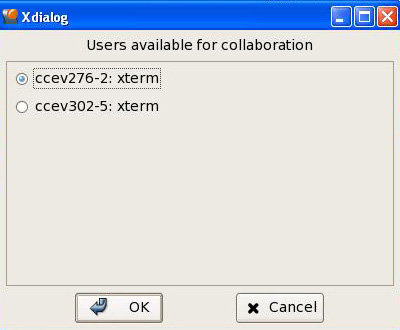
- On User B's window, a window will pop up with the Users Available for Collaboration list, look for the userid of User A, check it and click OK to proceed.
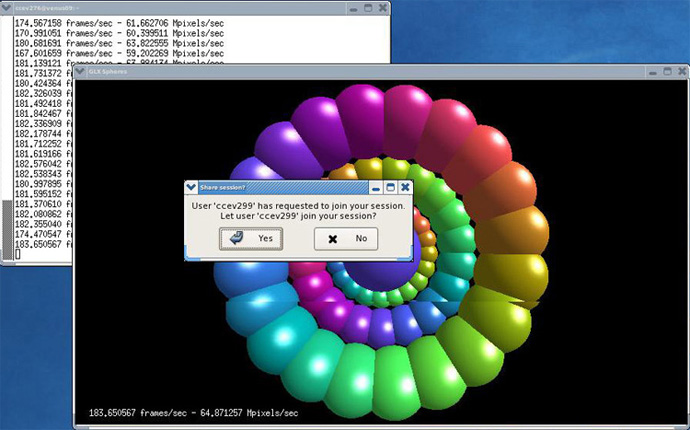
- A small message window will pop up on user A's screen and ask if user A wish to give User B permission to access his application session. Click Yes if you agree.
- The same application session should appear on both user A and user B's screens. The collaboration may now begin.
- After the collaboration session, only the initiator can close and exit from the application. User B can only close the display on his/her desktop. If you want to remove your name from the collaboration inviting userid list, you can click on the MobileVislab_DisableCollaboration button.
Run MobileVisLab on Mac systems:
- Download TurboVNC for Mac at http://www.virtualgl.org/Downloads/TurboVNC or http://bobcat.nus.edu.sg/svu/support/vnc
- Install the software after downloading.
- Start up X11 on the Mac, and launch a terminal.
- At the terminal command prompt, type: "/opt/TurboVNC/bin/vncviewer –x 11 cursor –listen 0 ".
- Login to HPC Portal and click on Run Jobs/Apps -> MobileVisLab
Issues You May Encounter When Using MobileVisLab
- If you have done everything correctly but the display does not come out, please check and make sure "vncviewer" is NOT blocked by your windows fire wall: Control Panel -> Secure Centre -> Windows Firewall -> Exceptions (Click and Check the vncview box)
- If you are not working within NUS Intranet, please start NUS VPN or login to http://webvpn.nus.edu.sg first before you login to NUS HPC portal and start MobileVisLab.
- The problem could also comes when you home directory disk quota is exceeded. Backup and remove files in your home directory to release the disk space or put up a request to apply for more disk quota in your home directory.
- At any login session to the other HPC servers, issue command "bjobs" and check if there are any pending or failed vislogin jobs. If yes, Terminated them using "bkill JOBID" before you try again.
- Once the system has exceeded 34 allocated sessions, the coming new jobs will be held in pending status. In this case, you may want to come back and try again later on.
- Sometimes, you can try to close the restart TurboVNC viewer if you suddenly can not start MobileVisLab again.
- If your are running Windows Vista, please do these before your try MobileVisLab: 1) open the following ports in Windows Firewall or any personal firewall on your computer: 5307 (tcp and udp) and 3144 (tcp and udp) 2) open your Internet Option -> Security tab -> trusted site list and add the following to your list of trusted sites: http://nushpc.nus.edu.sg/
Always close your MobileVisLab by clicking on the Red Cross sign at the right top corner of your interface.
