 Registration Guide Register for HPC Access to HPCNew User Guide How to Run Batch Jobs Portal User Guide About the Service Subscribe to Pay-Per-Use Service Subscribe to Condominium Service Terms and ConditionsUser GuideHigh Performance Workspace Service Utility Storage ServiceResearch Data Management Service
Centre for Computational Science & Engineering
 |
||
| Need help? | ||
|
||
 |
||
NUS iRODS: the Research Data Management Service
Introduction:
NUS iRODS system is based on open source iRODS (integrated Rule Oriented Data System) software infrastructure. It targets to help NUS researchers manage (organize, share, protect, and preserve) large research data sets. The NUS iRODS system was build on top of the Utility Storage Service and therefore inherits its low cost and RIAD6 protection features. There are two sets of data storage attached to two sets of iRODS servers which ensure the high availability of the service, data replication and protection. With NUS iRODS service, you can:
- Have easy and multiple ways to access the service: Web interface, Desktop Application and Linux Command line.
- annotate, locate uploaded data, and keep track of the data for audit trail.
- share data among research groups and set fine-grained access controll to the uploaded data.
- Enjoy high performance and high reliable data uploading/downloading and easy data management.
Accessing NUS iRODS:
NUS iRODS service is open for trial now. Contact us for a briefing and demo of the service and access enabling. Once you are given access, you can use the following methods to acess the service:
- Web Interface:
Web interface: http://irods.nus.edu.sg. Login in using your NUSNET userid and password. - iDROP Desktop:
Download the Java application idrop.jar onto your desktop: http://bobcat.nus.edu.sg/svu/support/jvm. Double click on idrop.jar and start a graphics interface, key in the same Host name, Zone name shown here and use your NUSNET userid and password to login: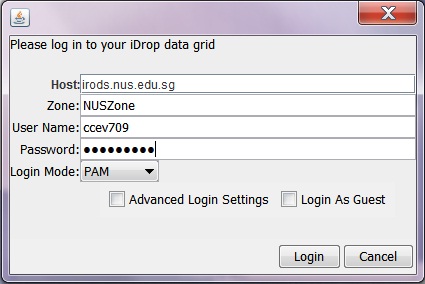
- Linux Command Line, iCommands Through NUS HPC Systems:
- Login to any login nodes.
- Create one folder (.irods) in your home directory (/home/svu/$USERID).
- Create a file (.irodsEnv) in this folder with the following content:
irodsHost irods.nus.edu.sg
irodsPort 1247
irodsDefResource 'irods.nus.edu.sg'
irodsHome '/NUSZone/home/$USERID'
irodsCwd '/NUSZone/home/$USERID'
irodsUserName '$USERID'
irodsZone 'NUSZone'
irodsAuthScheme='pam' - issue command "iinit" at the command prompt and key in your NUSNET password when you are prompt to.
- Linux Command Line, iCommands on Your Own Servers:
- In case when you are running Redhat 5 or equivalent on your system, download the icommand.tar.gz file from http://bobcat.nus.edu.sg/svu/support/jvm, untar the file to one of system file folders and set path to point to its location.
- In case when you are running other Linux operating systems, download irods 3.2 version from https://www.irods.org/index.php/Downloads.
- Unstar the tarball: tar –zxvf irods3.2.tgz, go to iRODS folder and run the install script: ./irodssetup.
- Answer “No” to all prompts except last two:
– Save configuration (irods.config) [yes]? yes
– Start iRODS build [yes]? yes - Set PATH to include the path to the icommands
tcsh:
setenv PATH $PATH:$YourPath/iRODS/clients/icommands/bin
bash:
export PATH=$PATH:$YourPath/iRODS/clients/icommands/bin - Do the same steps 2 to 4 as shown above in the NUS HPC systems.
