Registration Guide Register for HPC Access to HPCNew User Guide How to Run Batch Jobs Portal User Guide About the Service Subscribe to Pay-Per-Use Service Subscribe to Condominium Service Terms and ConditionsUser GuideHigh Performance Workspace Service Utility Storage ServiceResearch Data Management Service
Centre for Computational Science & Engineering
 |
||
| Need help? | ||
|
||
 |
||
1. Subscribe and access pay-per-use HPC cluster (nodes)
- The pay-per-use HPC cluster can be subscribed in the HPC Cloud service portal through the charging account created for you. Please follow the service portal user guide to perform the subscription. The subscriber can authorize his/her team members and students to use the subscribed HPC cluster.
The pay-per-use HPC cluster will be provisioned (four hours lead time) after the subscription (reservation) is made successfully in the service portal. Authorized users can access the reserved cluster through the login node cougar.nus.edu.sg. You can login to cougar using SSH or PuTTY with your NUS account and password. Sign-on to NUS’s WebVPN is required when you are off-campus.
-
2. List and check the reserved HPC cluster (nodes)
After login to Cougar, you can enter command ‘myres’ to check your reservation details such as the Reservation-ID, State, Owner, Number of Nodes, Start-Time, End-Time, Type and the Authorized Users. For example:

Note that you can start to submit and run jobs when the State for the reservation is ‘active’.
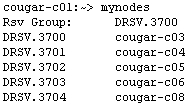
You can use command 'mynodes' to list the compute nodes of the reserved cluster. For example:
-
3. Home directory and Workspace
The Home directory (/home/svu/[username]) is shared among all the compute nodes. The quota of home directory is 4GB. A shared high performance workspace is available at /hpctmp, where 500GB workspace is allocated to each user. The details and instructions of using /hpctmp workspace can be found at this website.
-
The instructions on transferring files between the cluster and your PC or another Linux system can be found in the introductory guide for new HPC users.
-
4. Compile C/C++ and Fortran program
Intel C/C++ compiler and GNU C/C++ compiler are available on Cougar.nus.edu.sg.
The example of compilation for C/C++ program is:

The example of compilation for FORTRAN program is:

The executable output filename is ‘a.out’ by default. To specify the output executable filename, you can use “-o” flag as:

-
5. Submit a serial program to the reserved cluster
The best way to run a serial program on one CPU core is to create a job script file (e.g. run_a.out) with the following content:
#! /bin/sh
#PBS -l nodes=1:ppn=1,walltime=2:00:00:00
RUNDIR=”my_simulation_dir”
cd $RUNDIR
# exec program
./a.out
Take note to replace ‘my_simulation_dir’ with your active working directory. You can check it by running command ‘pwd’. - The part 'walltime=2:00:00:00' indicates that the job is expected to complete in less than 2 days. You need to estimate the walltime of your job and define it in the job submission script. The walltime defined shall not exceed the reservation time of your pay-per-use cluster, otherwise the job will not allowed for execution. The format of walltime is dd:hh:mm:ss (dd=day, hh=hour, mm=minutes, ss=seconds).
-
Then use the following command to submit the job to your reserved HPC cluster (i.e. DRSV.3449):

-
6. Compile C/C++ and Fortran MPI program
The example of compilation for MPI C/C++ and FORTRAN program is:
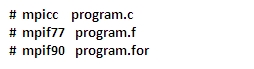
The executable output filename is ‘a.out’ by default. To specify the output executable filename, you can use “-o” flag as::

-
7. Submit an MPI program to the reserved cluster
To submit an MPI program to run on multiple CPU-cores and multiple compute nodes, you shall create a job script file (e.g. run_mpijob). As there have 12 CPU-cores on each compute nodes, if you wish to run MPI program ‘a.out’ on 24 CPU-cores, then you can create the script file with the following content:
#! /bin/sh
#PBS -l nodes=2:ppn=12,walltime=2:00:00:00
NCPU=`wc –l <$PBS_NODEFILE`
MPIRUN=”/usr/local/mvapich2/bin/mpirun”
RUNDIR=”my_simulation_dir”
cd $RUNDIR
# exec program
$MPIRUN -np $NCPU ./a.out
Take note to replace ‘my_simulation_dir’ with your active working directory. You can check it by running command ‘pwd’.
The above script defines to run MPI program ‘a.out’ on 2 compute nodes, with 12 CPU-cores per node and to be completed in not more than 2 days. The program will run on 24 CPU-cores.
The job can be submitted as:

-
8. Manage and monitor batch jobs
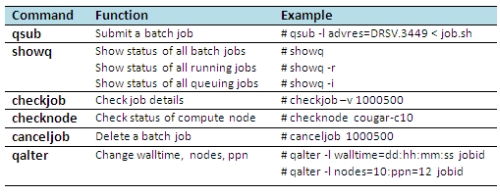
Besides use command ‘qsub’ for job submission, you may use the following commands frequently.