Registration Guide Register for HPC Access to HPCNew User Guide How to Run Batch Jobs Portal User Guide About the Service Subscribe to Pay-Per-Use Service Subscribe to Condominium Service Terms and ConditionsUser GuideHigh Performance Workspace Service Utility Storage ServiceResearch Data Management Service
Centre for Computational Science & Engineering
 |
||
| Need help? | ||
|
||
 |
||
The HPC Portal uses Sun's Java Portal server technology, in particular, Java portlets to provide a single-point of access to all SVU web services. Users will be able to:
- Access SVU login hosts through our Sun Secure Global Desktop (SGD) software
- Submit and manage batch jobs via the command line logins
- Access MobileVisLab
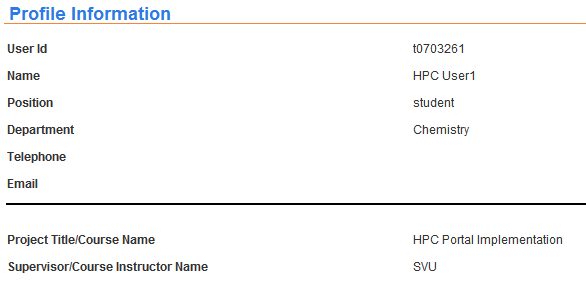
- View and manage user's HPC Portal profile
System Requirements
To ensure that the portal applets can run properly on your PC, you'll need the following:
- Latest Java plugin (available via www.java.com)
- The latest OS patches from Windows Update
- Users with Windows Vista or newer O/S will also need to set their Internet Options to trust http://*.nus.edu.sg/ and https://*.nus.edu.sg/ under the Internet Options -> Security tab.
Navigation Tabs
Use the Navigation Tabs (below) to access the various services within HPC Portal

Customising the HPC Portal
HPC Portal allows users to customise their web portal interface via the Content & Layout Tab, according to their individual preferences.

Non-administrative portlets can be switched on or off according to the preferences set by individual users.
Accessing Jobs and Applications via Secure Global Desktop (SGD)
The SGD services are now integrated into the HPC Portal and is accessible by clicking on the Run Jobs/Apps tab. This will automatically install the SGD desktop client onto your PC's taskbar, and log you in to your SGD webtop. Access to a particular login host, for example, atlas2 cluster or atlas3 cluster is as easy as clicking on the respective icons.
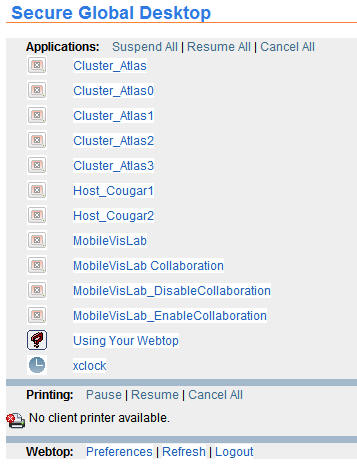
Note that the "Logout" link within SGD will only log you out of SGD, but not HPC Portal. To logout of HPC Portal properly, click on the Logout link on the top right corner of the HPC Portal interface.
The SGD webtop also allows users to:
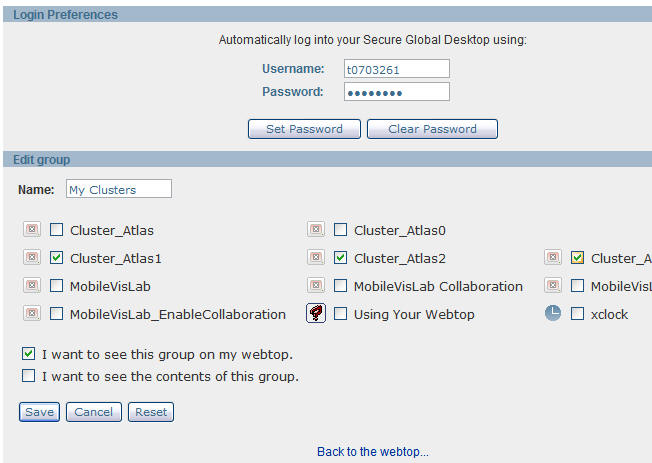
- Set their login credentials. Note that this is automatically done for users upon login.
- Organise preferred applications together into groups. Groups can then be hidden if they are not frequently used.
Accessing MobileVisLab services
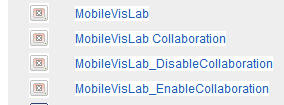
MobileVisLab is a remote graphical capability accessible via the SGD tab. Before clicking on the MobileVisLab icon, read the system requirements for your PC here.
Viewing Batch Jobs
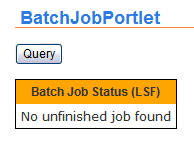
HPC Portal comes with a Jobs portlet (via the Jobs Tab as shown below).

Users can check their current jobs status by clicking on the "Query" button as show.
Managing User's Profile
Users can access their HPC Portal profile by clicking on "Profile" tab.

Update your particulars using this page.