 Registration Guide Register for HPC Access to HPCNew User Guide How to Run Batch Jobs Portal User Guide About the Service Subscribe to Pay-Per-Use Service Subscribe to Condominium Service Terms and ConditionsUser GuideHigh Performance Workspace Service Utility Storage ServiceResearch Data Management Service
Centre for Computational Science & Engineering
 |
||
| Need help? | ||
|
||
 |
||
High Performance Workspace for Computational Clusters
To meet the demands of the I/O intensive analysis programs that run on the computational clusters in Computer Centre, parallel file system technology is used to provide a large, scalable file system to each of the cluster nodes. The parallel file system makes use of the computational clusters’ Infiniband interconnections to provide up to 600 MB/sec of I/O transfer between the High Performance Workspace and the computational nodes.
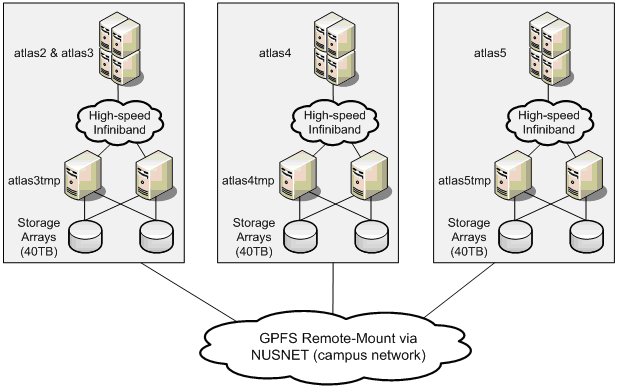
Please note that the parallel file system has been consolidated into a single file system, and is now accessible from all HPC systems listed below:
Cluster |
Path to file system |
Size |
atlas3, atlas4, atlas5, atlas6 |
/hpctmp |
120TB |
MobileVisLab |
/hpctmp |
120TB |
Users who have data in the old file system architecture will be able to find their existing files in the path shown in the table below. Please note that users cannot create new folders in the paths below. Instead, please make use of /hpctmp (above) to create new folders for their data files:
Cluster |
Old path to files |
New path to files |
Atlas3 |
/atlas3tmp |
/hpctmp/atlas3tmp |
Atlas4 |
/atlas4tmp |
/hpctmp/atlas4tmp |
Atlas5 & Atlas6 |
/atlas5tmp |
/hpctmp/atlas5tmp |
How to access and use the High Performance Workspace
The parallel file system designed to be used like a normal Unix directory, and all the Unix file management commands (like ls, cd, mv, cp, rm) and C and Fortran file I/O functions calls are applicable. For example, for the first time to use /atlas3tmp, you shall do the followings:
> cd /hpctmp |
# change directory to /hpctmp |
> mkdir a0123456 |
# create a sub-folder using your username “a0123456” |
> chmod go-rwx a0123456 |
# remove permission for other users to prevent access |
> ls -ld a0123456 |
# list and check the sub-folder permission |
> cd a0123456 |
# change directory to the sub-folder |
> pwd |
# print and show the absolute location |
Then, from second time onwards when you want to access and use this space, you can change directory to this sub-folder directly as:
> cd /hpctmp/a0123456
Please note that the parallel file system meant to be used as a temporary workspace for analysis files, and not for long term, mass archiving. Files that are not in use should be copied back to users’ own PCs and deleted. This will ensure that the disk space is sufficient for all users. Files older than 60 days will also be purged from the parallel file system.
To transfer files/folders between the local disk on your Windows computer and the /hpctmp workspace, please follow the sample instruction (PDF) using the Secure Shell file transfer utility or other equivalent tools.
Quota
Each user will be limited to 500GB of storage quota. Users can check their usage via the following command:
mmlsquota -u [userid]
As the amount of data increases, users are encouraged to regularly maintain their files so as not to hit the quota limits. Users can request for more quota if their analysis programs require it. Please download and complete our service request form for quota increase, available in Computer Centre’s HPC website.
Retrieving deleted files
The parallel file system will be set up with snapshot features for users to quickly retrieve accidentally deleted files. Access is via a snapshot directory at the top directory of the parallel file system, i.e.:
/hpctmp/.snapshots
The snapshots feature will take the last 2 days' snapshots of users’ files. Note that older snapshots will be purged if there is insufficient space. The names of the snapshot directories uses the snapshot date, and thus, can be used to help you to determine which snapshot to retrieve from.
There will be no other backups available for the High Performance Workspace.
