


FAQ
This FAQ is divided into multiple segments. Click on the links below to jump between segments.
Enrolment
-
How do I enrol to 2FA?
Follow the steps here to enrol. - If I enrol one device, can I login to 2FA-enabled applications from another device?
Yes, the device you enrol is for generating Security Code only. You can use any device or computer to access 2FA-enabled applications by entering your NUSNET User ID, password as well as the Security Code.
-
How many devices can I enrol for 2FA?
Only ONE device can be enrolled at a given time. You may change to a different device at any time provided that you de-register your current device first. -
What devices are supported to generate Security Code for 2FA?
Various devices and platforms are supported to generate Security Code for 2FA. For security reasons and convenience, we strongly recommend choosing your smartphone or tablet as your 2FA device.
Supported smartphone and tablet Operating Systems:
- iOS (eg. iPhones and iPads) version 4.3 or higher (Check your version here)
- Android (eg. Samsung, HTC, LG) version 2.3.3 or higher (Check your version here)
- BlackBerry version 10.1 or higher (Check your version here)
- Selected older BlackBerry phone models (See list of supported models here)
- 8100 (Pearl)
- 8110 (Pearl)
- 8120 (Pearl)
- 8130 (Pearl)
- 8220 (Pearl Flip)
- 8230 (Pearl Flip)
- 8300 (Curve)
- 8310 (Curve)
- 8320 (Curve)
- 8330 (Curve)
- 8350i (Curve)
- 8520 (Curve)
- 8530
- 8700
- 8700c
- 8700g
- 8700v
- 8703e
- 8705g
- 8707v
- 8800
- 8800g
- 8820
- 8830
- 8900 (Curve)
- 9000 (Bold)
- 9100 (Pearl 3G)
- 9105 (Pearl 3G)
- 9300 (Curve 3G)
- 9320 (Curve)
- 9330 (Curve 3G)
- 9350 (Curve)
- 9360 (Curve)
- 9370 (Curve)
- 9380 (Curve)
- 9500 (Storm)
- 9520
- 9530 (Storm)
- 9550 (Storm 2)
- 9630 (Tour)
- 9650 (Tour 2)
- 9670 (Style)
- 9700
- 9780 (Bold)
- 9790 (Bold)
- 9800 (Torch)
- 9810 (Torch)
- 9850 (Torch)
- 9860 (Torch)
- 9900 (Bold Touch)
- 9930 (Bold Touch)
- Windows Phone versions 7.5, 8 and 8.1 (Check your version here)
Supported Operating Systems for desktops and laptops:
-
I don’t have any of the supported devices. I don’t have a supported smartphone or tablet; nor do I have a windows/OSX computer. What should I do?
This scenario is currently under management review. At this moment, you need to have one of the supported devices in order to use 2FA.
-
I have multiple devices I am able to enrol to generate Security Code for 2FA, such as my notebook, desktop PC, Apple iPad and Android smart phone, etc. Which should I choose?
Your smartphone or tablet is recommended due to its mobility. This way, you can carry it anywhere and obtain the Security Code, so that you can login to 2FA-protected systems wherever you go.
Please note that you can only use one of the supported devices to generate the Security Code.
Using notebook or desktop PC to generate Security Code is discouraged due to the following:
- It is not as mobile as smartphone or tablet. If you go somewhere without it, you will have trouble logging in to 2FA-protected systems.
- Your desktop or laptop might be shared with others, thus compromising 2FA.
-
What is Credential Name?
Credential Name is any name you prefer for your device, e.g. "My Android". -
What is Credential ID?
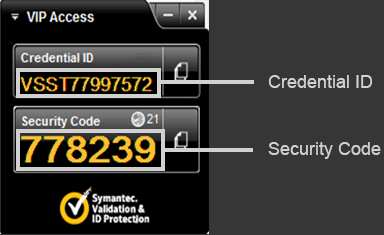
You should have installed the 2FA program "VIP Access" in your chosen device, be it your desktop, notebook, smart phone or tablet. Launch VIP Access in the device you have chosen, and you should be able to see the Credetail ID.
In the screenshot below, the Credential ID is VSST77997572.
-
Can I use the same device for multiple NUSNET UserIDs?
Yes, you can. You will need to repeat the registration process for each NUSNET UserID at https://2fa.nus.edu.sg. A detailed guide on registration can be found here. -
How do I change my registered device?
You need to de-register your currently registered device before you can register your new device. Both de-registration and registration can be done at https://2fa.nus.edu.sg.
A detailed guide on device de-registration can be found here.
A detailed guide on device registration can be found here.
-
Can I enrol from outside of campus?
Please call 6516 2080 to request for enrollment if you are outside of campus. You cannot enroll from outside of campus by yourself
-
What is NUS Intranet?
NUS Intranet refers to NUS internal network. You are inside NUS Intranet if you access the network through cabled connection within campuses, or using NUS wireless network.
When you connect to Internet via Telco data plan or home network, you are not inside NUS Intranet. 2FA is required before you can access NUS Intranet by logging into NUS WebVPN using a computer. -
Why can’t I access https://2fa.nus.edu.sg (Self-Service Portal)?
Intranet is required to access Self-Service Portal.
-
Why can’t I install the 2FA program VIP Access into my computer?
Users have different privilege on a computer. Only users who have administrative right can install the 2FA program VIP Access into a computer.
-
I don’t have smart device, and I share office computer with several others. How can I generate Security Code to login to 2FA-enabled applications?
You can use the shared office computer to generate Security Code. The administrator can install the 2FA program "VIP Access" into the shared computer. Once it is installed, you can login to the computer using your NUSNET account, launch the 2FA program "VIP Access", and register it. After registration, you can use it to generate Security Code.
-
I got an error message "Invalid Credential ID". What should I do?
Please contact NUS 2FA Enquiry or call 6516 2080 for assistance.
-
Will someone be able to use my lost device enrolled to 2FA to access my NUS applications?
The device alone cannot be used to sign in to NUS applications. The device is used together with your NUSNET UserID and password, and only you will know your password. -
I do not know whether my smart device is Android, IOS, Blackberry or Windows Mobile. How should I enrol my device?
Simply entering the url m.vip.symantec.com to your smart device’s browser, and click on Download. You should be directed to the available app store on your device. You can then download and install the 2FA program "VIP Access".
After downloading and installing, you should register your device by following the steps here.
-
I missed the briefing sessions on 2FA. Is there video recording that I can view online?
Yes, video recording for the briefing is available here. The video can be viewed in Windows and Macintosh, all browsers are supported (Internet Explorer, Firefox, and Chrome). To view the video, you need to install and enable Silverlight plugin.
To determine whether you have the Silverlight plugin installed, visit Microsoft's Get Microsoft Silverlight. If Silverlight is installed, you will see a message with your Silverlight version.
If you do not have Silverlight installed, please follow the instructions below to have it installed:
- To install in Windows:
- Download the Silverlight installer from Microsoft.
- Follow the on-screen instructions to install Silverlight.
To install in Macintosh:
- Download the Silverlight installer from Microsoft.
- Follow the on-screen instructions to complete the installation.
After installation, the Silverlight plug-in is enabled by default.
In Internet Explorer, you can enable the plug-in if it is disabled previously:
- Select "Manage add-ons" from the Tools menu.
- Click "All Add-ons" under "Show".
- Click on the Silverlight add-on and click "Enable."
In Chrome, you can enable the plug-in if it is disabled previously:
- Type chrome:plugins in the address bar.
- Find Silverlight:
- Click Enable to re-enable the plug-in.
In Firefox, you can enable the plug-in if it is disabled previously:
- Click the "Tools" drop down menu and select "Add-ons."
- Select the "Plug-ins" tab in the Add-ons Manager.
- Locate the Silverlight plugin. Open the drop-down menu box associated with Silverlight and select "Always activate."
Please call 6516 2080 if you still encounter issue.