



FAQ
This FAQ is divided into multiple segments. Click on the links below to jump between segments.
Security Code
-
What is my Security Code and where can I find it?
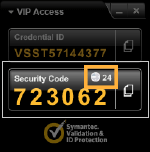
From your enrolled device, launch the 2FA program VIP Access. You should be able to see the Security Code from there. In the screenshot below, the Security Code is “723062”. Please be reminded that each Security Code is only valid for 30 seconds.

Your Security Code together with your NUSNET UserID and password will be used to access NUS 2FA-protected systems.
-
How long is my Security Code valid for and how can I know how much time I have before it expires?
Your Security Code is valid for 30 seconds. There is a timer on the top left corner of the “Security Code” box to inform you how much time you have left before the current Security Code expires. In the screenshot below, the Security Code will expire in 24 seconds.
-
What happens when my Security Code expires?
When your Security Code expires, the application VIP Access from your registered device will generate a new Security Code. You have to use the latest Security Code when logging in to 2FA-protected systems. Please ensure that you have enough time to type in the Security Code when logging in.
-
What should I do if my Security Code is valid but my authentication failed?
Ensure that you have completed the enrolment and that you have tested your VIP credential without errors. Click here on how to test your VIP credential.
If you are still unable to login using your Security Code, please contact NUS 2FA Enquiry or call 6516 2080 for assistance.
-
When I launch VIP Access in my Samsung phone, I always get the following error. What should I do?

Please reboot your Samsung phone, and try launching VIP Access again. If the problem persists, please contact NUS 2FA Enquiry or call 6516 2080 for assistance.
-
The clock in my registered device does not work properly. Will my device still be able to generate valid Security Code?
No, the device will not be able to generate valid Security Code if its clock is not working properly. The cryptographic algorithm used to generate Security Code is based on many factors, one of which is the timestamp in the registered device.
-
The clock in my registered device use a different time zone. Will my device still be able to generate valid Security Code?
Yes, the device should be able to generate valid Security Code regardless of time zone setting.
-
I have enrolled 2FA on my desktop to generate Security Code. When I am outside of office, how should I obtain Security Code?
Enrolling 2FA on desktop to generate Security Code is discouraged due to its immobility. However, if you do not carry a smart device and have to enrol 2FA on your desktop, you need to access your desktop remotely in order to obtain the Security Code.